
iPad station and the member app
Kids check-in
- The iPad start screen has a Welcome side and a Start panel, with “Scan to print tags” and a second button, “Check in without a QR code.”
- “Check in without a QR code” opens the existing kids check-in page inside the app and remembers the selections made there.
- The label printer is optional. If an iPad has no printer, a scan still finishes and the screen shows a picture of the tag that would have printed.
- Kids check-in in the member app can offer event and childcare times, not only weekend services.
Screenshots coming soon
Pictures of the check-in station will be added here once the latest iPad build is ready.
Member app
Prayer
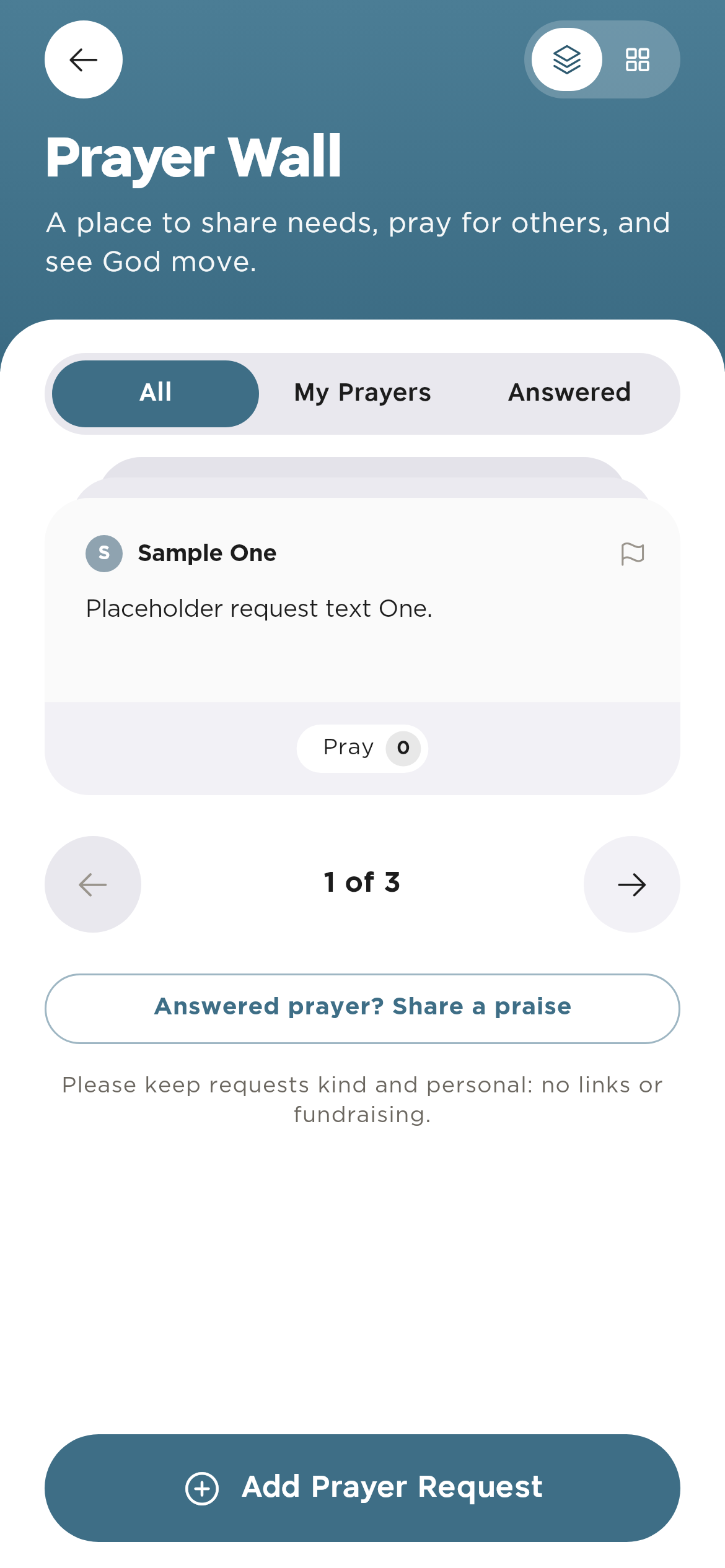
- Public prayer requests show up on the Prayer Wall right away. After you submit a request, the app gives the same confirmation everywhere.
- You can swipe from one open request to the next from Home, Daily, and the Prayer Wall.
- On the wall, flipping through cards looks like the top card sliding off to show the one behind it. The card follows your finger. A short drag springs back. A longer drag or a fling finishes the move.
- If a request has no first name, or the campus name was stored as the name, the card is labeled Anonymous.
- After someone shares a praise, My Prayers and the wall refresh so the update is visible.
Member app
Daily
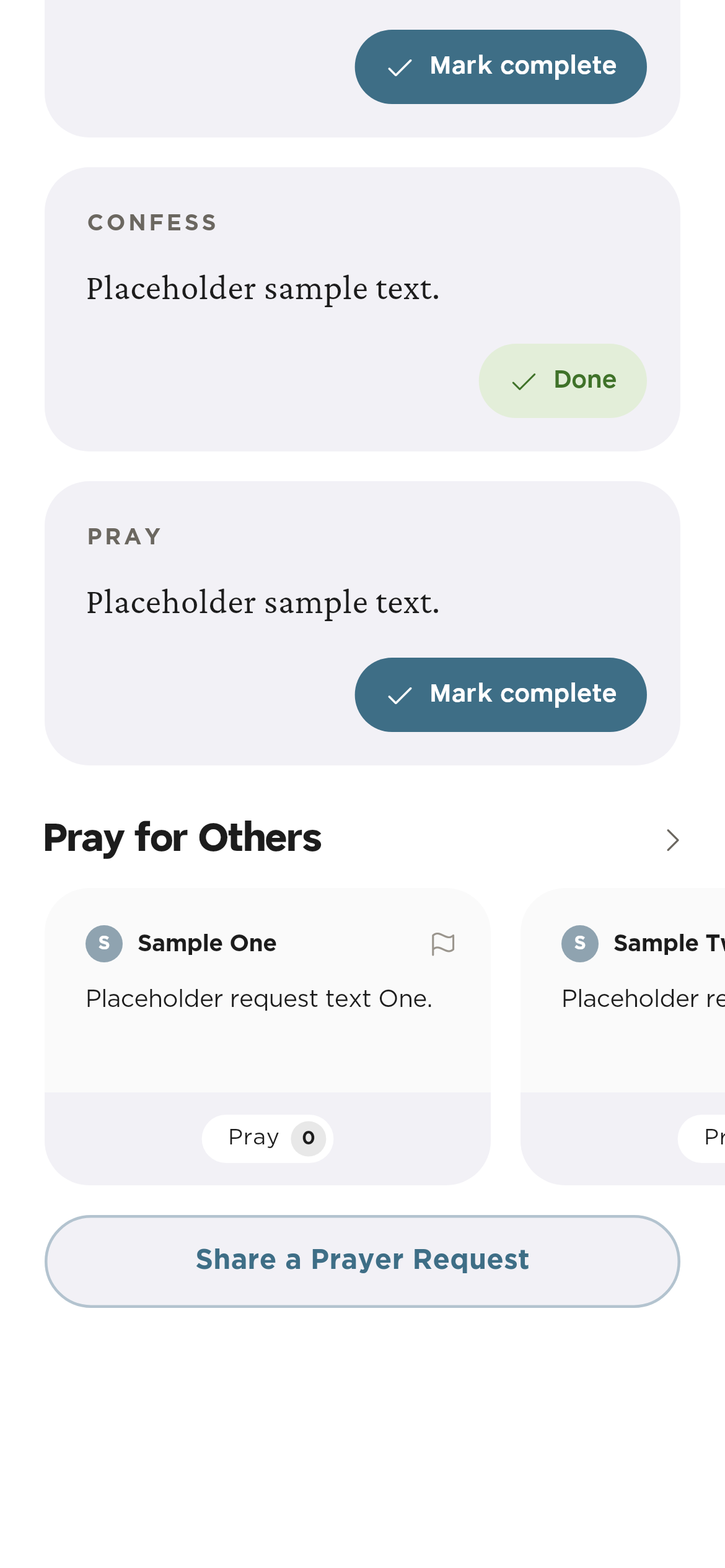
- Daily includes a prayer entry.
- Additional reading plans appear under Pray for Others when plans exist, and the section hides when there are none.
- Pray for Others, the share button, and reading plans stay on Daily even on campaign days, or on days that are still locked or empty.
- The Mark complete button is solid teal with a white check when the day is not done, and a flat green Done state when it is, in line with the Prayed state on a prayer card.
Member app
Give
- Preset giving amounts sit on one row, with equal widths, even on a narrow phone. The custom amount field is on top.
- “Other Ways to Give” uses the church’s own title, subtitle, and link to milestonechurch.com/give/.
- The confirm button reads “Continue to PushPay,” or “Continue” if that label is not set.
Member app
Watch
- Watch does not include a service rail.
- By Topic is a reel of designed tiles. Labels, colors, and optional images come from what staff set. Renaming a label does not change which videos are in that topic.
- A topic with no videos, such as Prayer when it is empty, is hidden from By Topic.
- Pulling down to refresh updates By Topic, Continue Watching, and the podcast row.
- Story cards do not show a subtitle such as “Milestone Church.”
- Staff can manage Watch categories and set per-video overrides, including a flag for a message series.
- Share appears only when there is a real link or image to share, and message share uses the prepared share copy.
Member app
Events and registration
- Event registration is one straight path: choose the adults, answer once whether you want childcare, then choose the kids if you said yes.
- Information already on file is labeled “Already on file.”
- Sharing an event points to that event’s own sign-up page, not the general events listing. The share text is “Check out this event at Milestone Church,” unless staff has changed it.
- A registration is hidden once the event has ended, even if a start time was missing.
Member app
Groups, serving, and family
- Serving is split into My Teams and My Family’s Teams.
- The serving check-in card uses the same ink color as the rest of the card, shows a spinner while it loads, and keeps another open service time on the card with the QR and tag after a check-in. After the first load of the day, the card opens quickly.
- Staff can hide groups from the app in the staff site.
- The kid edit form does not include an allergy field.
- Saved items that are gone say “No longer available,” with a Remove action.
Member app
Titles, keyboard, and polish
- Screen, section, and card titles are Title Case across the app. Buttons, body text, and titles that come from church or video sources stay as they are.
- Tapping outside a text field dismisses the keyboard, and a Done bar sits above the keyboard, including on number pads. Tapping another control both uses that control and dismisses the keyboard.
- Buttons and cards give a slight press response. On newer iPhones, the top-right page buttons and Daily’s Search button use a glass look.
Staff site and behind the scenes
Staff tools
- Staff have more control over what the app shows, including group types, campuses, registrations, Growth Track, names, tags, and the public calendar.
- The Videos tab in the staff site opens without a long wait or an error.
- Church records stay in sync, including giving, even when a few rows have problems.